

How to Display Uploaded Images Full Width in Feed?
Hi, I just noticed that when students upload images in the community feed, there’s white space on both sides — the images don’t stretch to the full width of the feed. I’m not sure if it was like this from the beginning or if something has changed recently, but I’d like the images to display edge to edge without horizontal margins or padding. Is there a way to fix this?
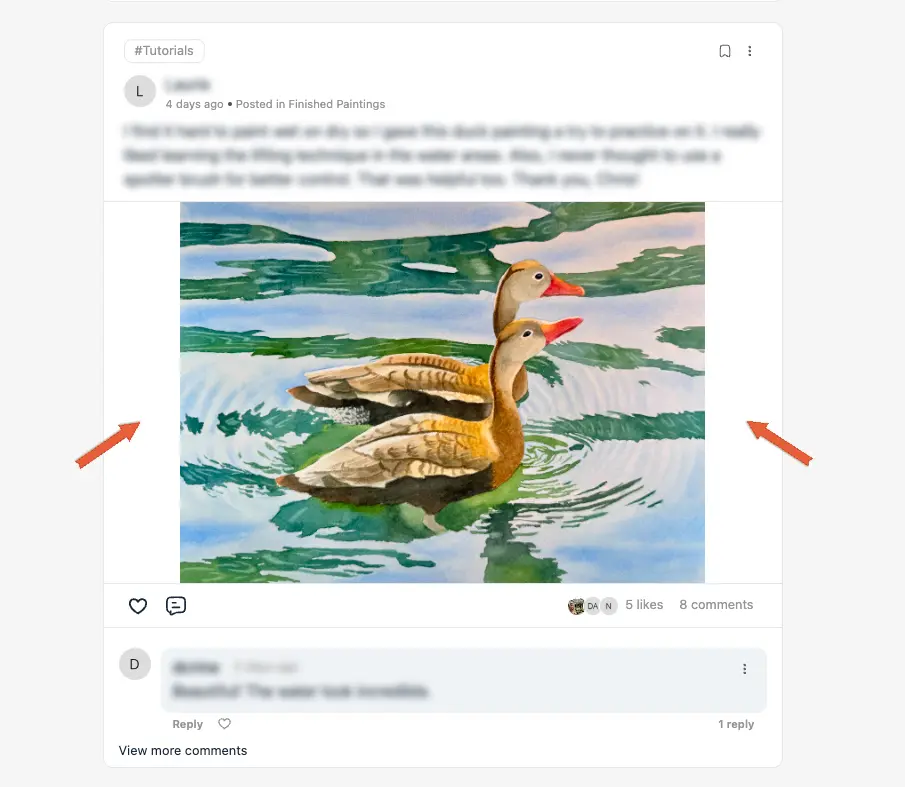

If you click on the image, it will display while keeping its proportions.

D@vid Yes, I know it keeps its proportions, the images are in fact displayed in correct proportions. But I don’t understand why there’s still padding on both sides. I’ve seen other posts in this support community where images don’t have that extra space, so I’m wondering what’s causing it in my case.

You can play around with something like
.fcom_media_provider_uploader img {object-fit: cover !important;}Jonathan Gwyer Thank you for your help! I tweaked it a bit and it works perfectly. Here's the code if someone needs it:
.fcom_media_provider_uploader {
aspect-ratio: auto !important; / Remove fixed aspect ratio if present /
height: auto !important;
}
.fcom_media_provider_uploader img {
width: 100% !important;
height: auto !important;
object-fit: contain !important;
}

Chris Hi Chris, is this working to solve image padding on the sides? Having the same problem displaying image full width in a post.
My previous post about it https://community.wpmanageninja.com/portal/space/community-meta/post/post-image-size