

Any guide or tips on how to style Fluent Booking front end calendar?
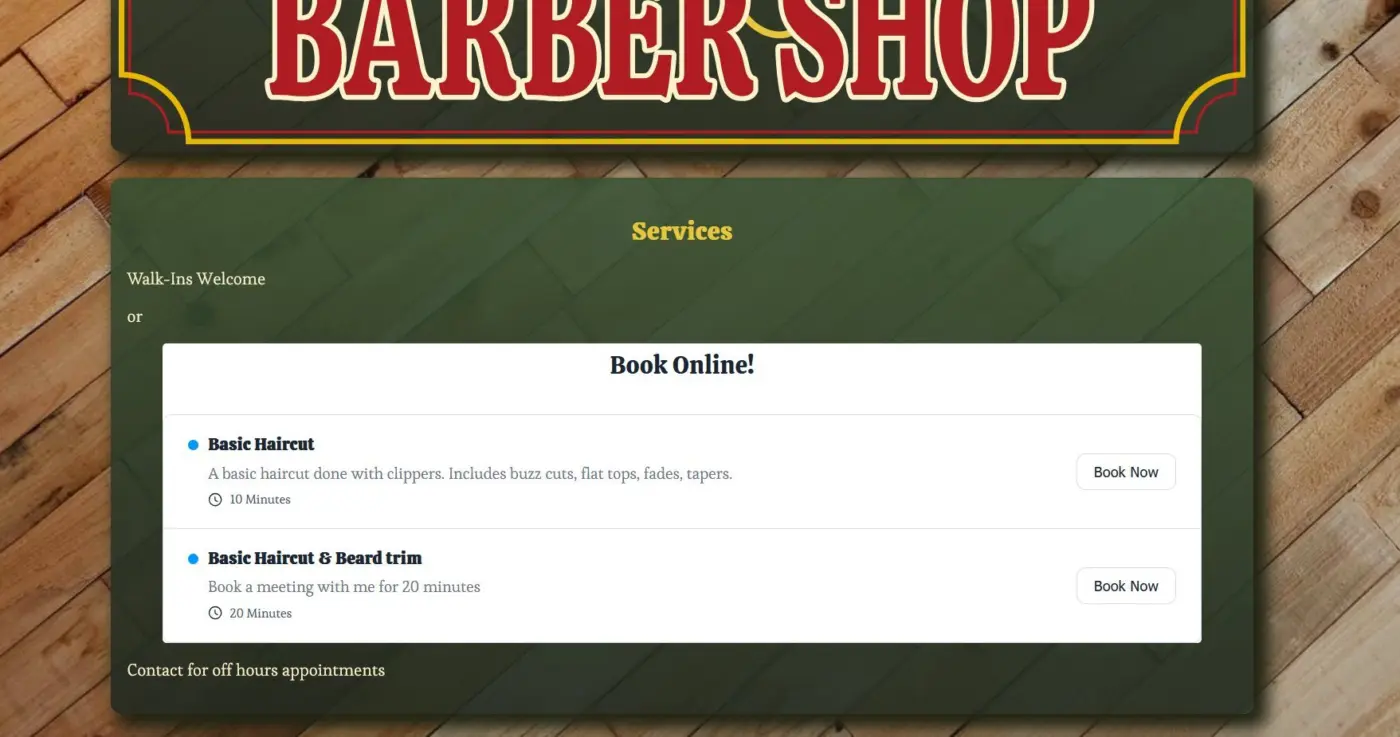
The searing white just doesn't go with my clients more warm and rustic website...
I'm using the wp block editor and the Fluent Booking Calendar block.
I've tried doing the normal inspect and targeting elements and that's not really working (though I was finally able to change the background of just the header). I followed stuff in inspect, looked in the dev docs, did searches for style or css and there's a huge amount of nothing.
Even just turning every background transparent would work sort of work, because then I could put it in a container with matching radius on the corners and change the background on that... But ideally I'd prefer to be able to style all the individual things like the subtle hover colors and the buttons, etc.
Thanks!
-Verity


Since you’re using the Fluent Booking Calendar block inside a page, the best approach to customize its design is by targeting the HTML classes and adding your own CSS overrides: https://prnt.sc/yWxj4eY1jP74
You can inspect the elements using your browser’s developer tools to identify the relevant class names, then place your custom CSS in Appearance > Customize > Additional CSS in your WordPress dashboard.
For example, if you’d like to change the background color of the event slots, you can use:
.fcal_slots_wrap.no-author-header .fcal_slots .fcal_slot {
background: bisque !important;
}
By following this approach, you can override and customize various parts of the Fluent Booking UI, including backgrounds, buttons, hover states, and more, based on your site’s design preferences.
If you run into any specific element that’s difficult to target, feel free to share it with us, and I’ll be happy to help with the exact selector.

Ruman Ahmed Thanks for the response. That's what I've been trying to do that isn't working great. Guess I'll keep pursuing that.
Verity Cantare If something isn’t working as expected, please feel free to share the details.
Ruman Ahmed Appreciate the attention to my struggle, thanks. I'm slowly working through it. There's about a million selectors here all layered together with some, uh, interesting styling choices. I'm currently building a theming engine to make this process easier for all the sites I'm hoping to use this software on and will share it here when I'm done.
It baffles me that there isn't something simple in place already. Not every website out there is white...
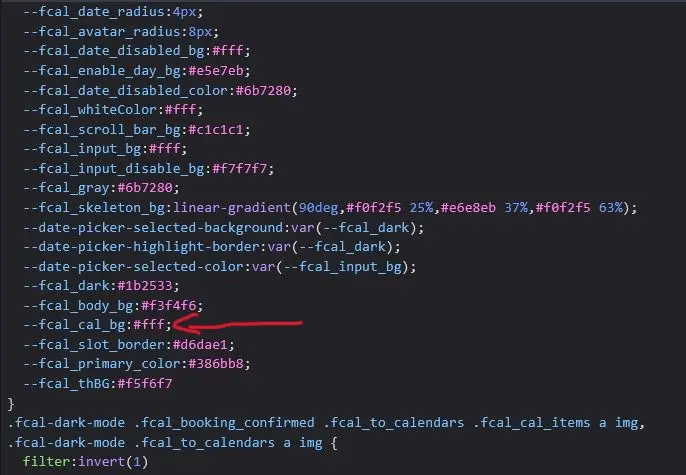
It would be a lot easier if I could just plug into the theme that's already there, but I haven't been able to figure out how. It already defines variable for colors, and the default styling in the display uses these variables, not the colors themselves, as shown in my screenshots above. I'd love a simple snippet that just targets these variables and rewrites the color value. And this would likely work for every kind of display the plugin does instead of my very specific theming engine which will only target the block editor FB Calendar block display. But my attempts to figure out how to do that have all failed.
I'm learning, but still pretty new to digging around in the guts like this. And it doesn't help that the fluent architecture is so different from everything else I've been learning. I really have almost no idea where to find anything in it.
Progress report: I've finally worked out how to use the mostly comprehensive built in theme structure to build my theme engine on top of. This method should allow easy re-theming all front-end displays instead of the laborious manual method I was working through which would only have been good for the calendar block. There will even be instructions on how to link the theme colors to the block editor global style colors.
Will share when it's finished.