

How we handle COD on digital carts, shared downloads, and blocked checkouts in Toolbox 1.2
Toolbox 1.2 is for a few checkout and order workflows we keep building for.
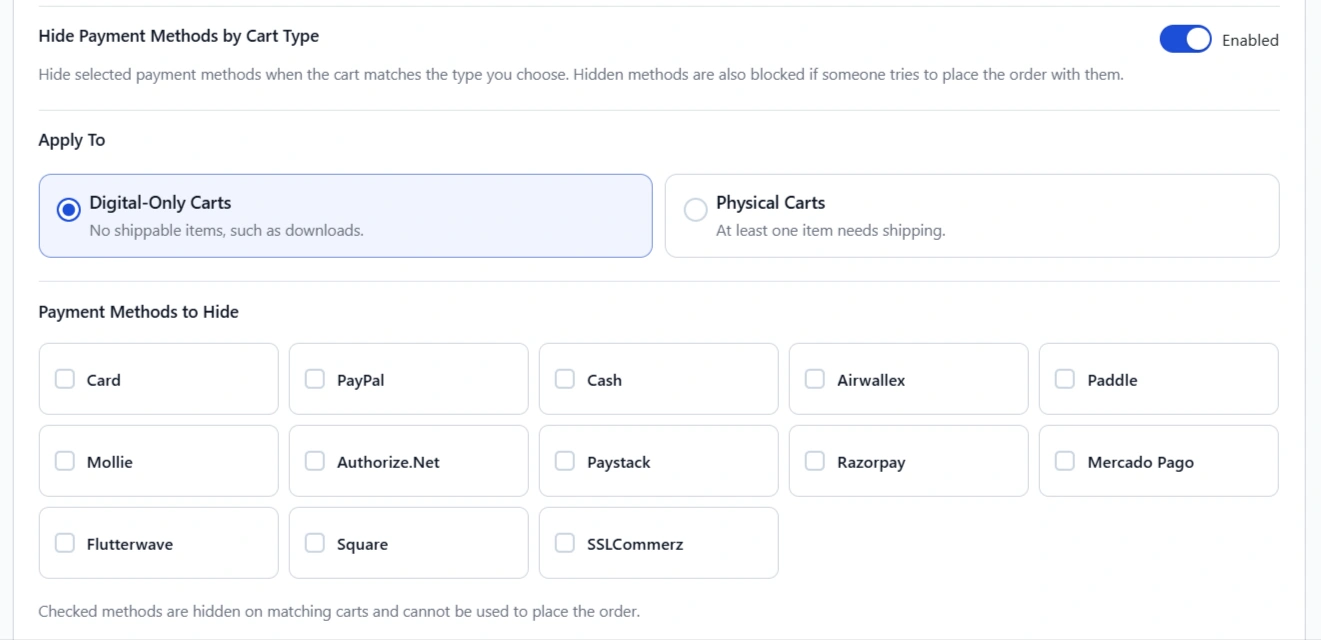
Digital cart, but you do not want Cash on Delivery
If the cart is download-only, you can hide selected payment methods by cart type: hide COD on digital-only checkouts, or hide a method on physical carts. Place order uses the same rule, so a hidden method cannot be posted.
Use this when you sell ebooks next to shipped products, and a digital order should not go out as cash on delivery.
Checkout is open in one tab, and the cart changes in another
If the form is empty, checkout refreshes by itself. If the shopper already typed a name or address, a banner with a reload button is shown so those details are not lost.
Use this when someone compares products in two tabs, then comes back to pay.
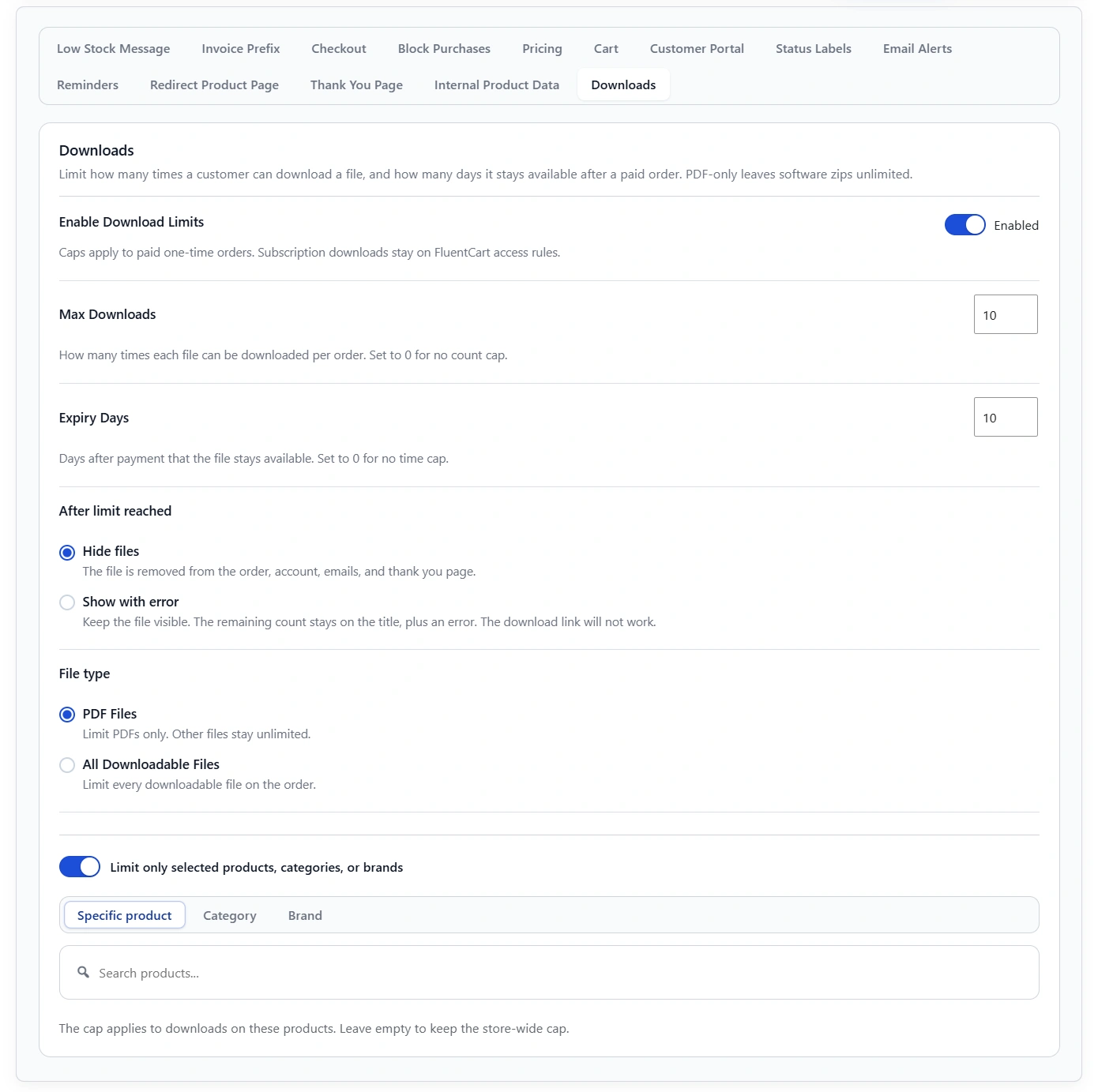
A paid file should not stay downloadable forever
For paid one-time orders, you can cap how many times a file can be downloaded and how many days it stays available. Remaining count and expiry show on the customer order, the account download list, and the WP admin order view. Limit PDFs or all files, store-wide or for selected products, categories, or brands. After the limit, hide the file or keep it visible with an error. The download link will not work.
Use this for a course PDF or an ebook you want to limit.
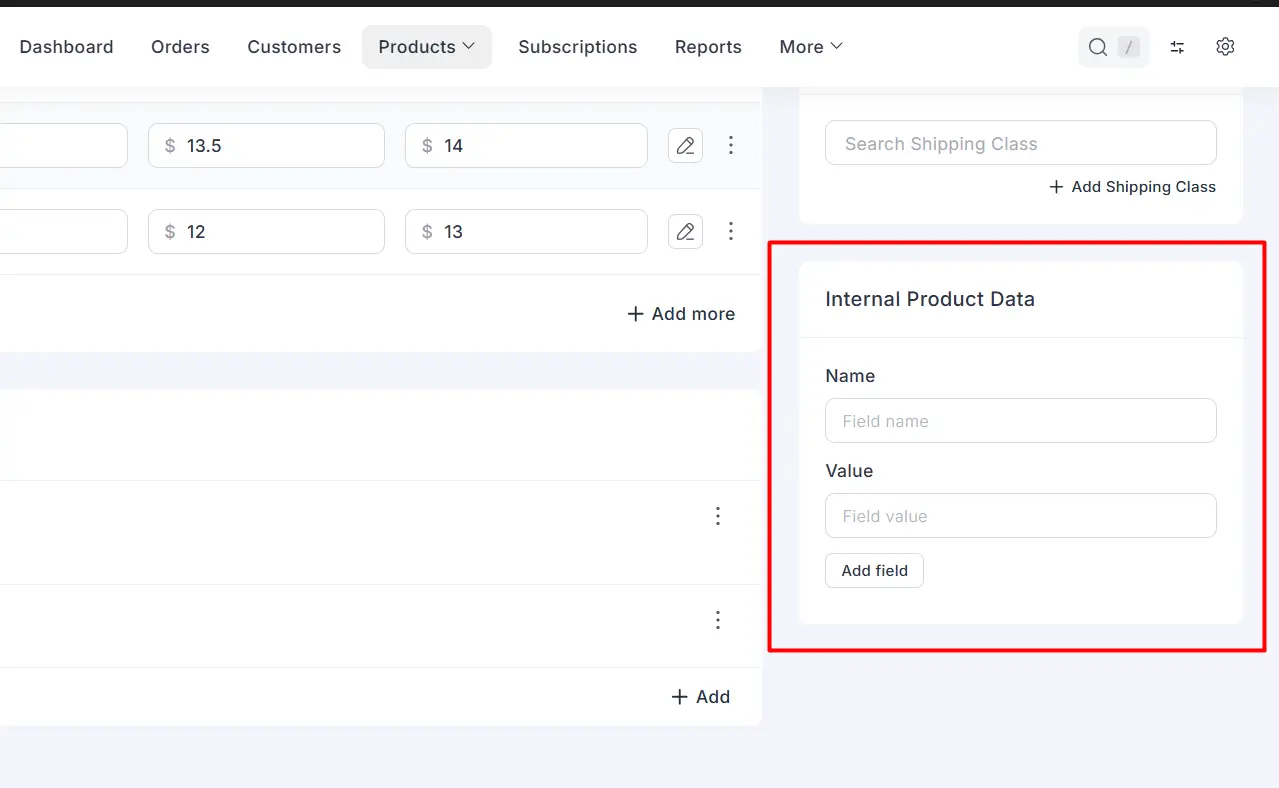
Staff need an ERP or External ID on the order, not on the shop
Internal Product Data adds staff-only name and value rows on the product editor. They stay off the storefront. When the product sells, the same pairs copy onto the order so staff and an API can match the sale.
Use this when fulfillment needs a code shoppers should never see.
You already know who should not be able to buy
Block purchases by email, IP, WordPress role, or FluentCRM list and tag. Each rule has its own toggle and message. Matching shoppers cannot place the order.
Use this for a known fraud email, a role you do not sell to, or a FluentCRM list or tag you want to keep out of checkout.
You need a date on the order
Checkout fields can be a Date picker. The shopper picks a date, it stores on the order, and staff and the customer see it in the site date format.
Use this for a preferred delivery date, a class date, or an appointment.
A field should only appear for wholesale or a CRM segment
You could already show a field group only for selected products, categories, or brands. You can also show it only for selected WordPress roles, or FluentCRM lists and tags.
Use this for a tax ID that only a wholesale role should see, or a note that only a VIP list should get.
Screenshots and the full notes are here:
https://cartcubes.com/cartcubes-toolbox-for-fluentcart-1-2/
https://cartcubes.com/fluentcart/toolbox/

Wait… offline payments = COD? 🤦🏻♀️ My brain has been stuck on nomenclature this whole time! Now I’ll go re-read your post. 🙃

So, would it be possible to display a specific checkout field only for contacts belonging to a specific FluentCRM list?
Also, could you provide more details about how the Minimum Order Amount settings work?

Thomas Rodriguez Hi Thomas, thanks for both questions.
Yes. In Toolbox 1.2 you can show a checkout field group only for contacts on selected FluentCRM lists (or tags, or a WordPress role). Put the field in its own group, turn on "Show only for selected products, categories, brands, roles, or FluentCRM lists and tags," pick FluentCRM list, then choose one or more lists. The group shows when the checkout email is on any of those lists. Leave the picker empty and the group still shows for everyone. FluentCRM needs to be active. Guests are matched from the billing email as they type.
On Minimum Order Amount, it lives under Tools -> Checkout:
- Turn it on and set the amount in your store currency.
- The below-minimum message can use
{amount}for the minimum and{remaining}for how much is still needed. - Show remaining amount message: show that notice on checkout before Place order.
- Exclude shipping: only product totals count toward the minimum.
- Disable Place Order until the minimum is met: the button stays off while the cart is short.
- Apply to: all products, only physical (skips download carts), or only digital (skips carts that need shipping).
- Optional extra filter: selected products, categories, or brands. The minimum applies when at least one match is in the cart. Leave that picker empty to use only the Apply to rule.

Can't wait to try those key value pair fields! So glad I bought this a few days ago. Didn't even realize this was being added for the next release. Nice! Thank you!
A SMITH Thanks, glad you already have Toolbox and that the key value fields are useful.
We are happy to shape Toolbox around what live FluentCart stores need, and happy to keep adding and updating features as those stores need them.