

Fluent Community Lesson: FeaturedImage thumbnail distortion caused by mismatched aspect ratio and object-fit: fill
You’re forcing a 16:9 image into a 60×48 (5:4) box and using object-fit: fill, which stretches the image and breaks its aspect ratio.
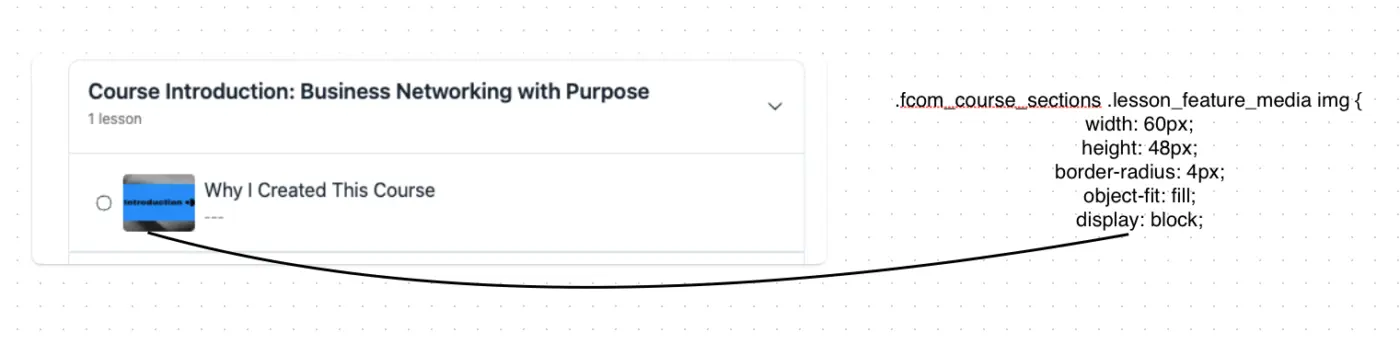

Actual Image looks like this:

I have had the same problem. No matter what picture you upload, it always looks distorted. I even opened a support ticket, but was told to upload a square image. Yet this did not solve the issue..
Learning Music Skills uploading a square image isn’t a solution — it’s a bad workaround. This image is also used as the page’s featured image, and sharing it on platforms like Facebook would force it to appear square. There has to be a proper solution instead.

Manoj Sharma Noted. We will have a look into it. Thank you!
Thanks Raiyan Marzan , since you are looking into this there few more things you can have a look at that will increase user experience and solve... you can find them all here....
https://community.wpmanageninja.com/portal/u/monoj/posts
Manoj Sharma Sure. Thank you!

Hello Manoj Sharma, we have reviewed this with your picture, and it looks well-shaped. For the best view for thumbnail, try a bit square shaped size.
Tawsif Ahmed Riyad I dont think this is a solution by uploading square images. its a workaround, Thumbnail is generated by featured image...
possible Solution:
- you make the thumbnail so that it adjust automatically to the wordpress feature images that is 16:9 ratio. or
- Lession Thumbnails to be updated sepertly...
Manoj Sharma, we have tested with your image too. If you can kindly check my previous comment's image. The image you provided looks good. And also, if you want the thumbnails to appear more as a rectangular shape, you can use custom CSS in your settings (Settings > Customization > Custom CSS)
.fcom_course_sections .lesson_feature_media img {
width: 70px !important; // set the size according to your preference
}
Just update the width only, by default it is set as 60px, if you increase it, then all the thumbnails will appear more rectangular.