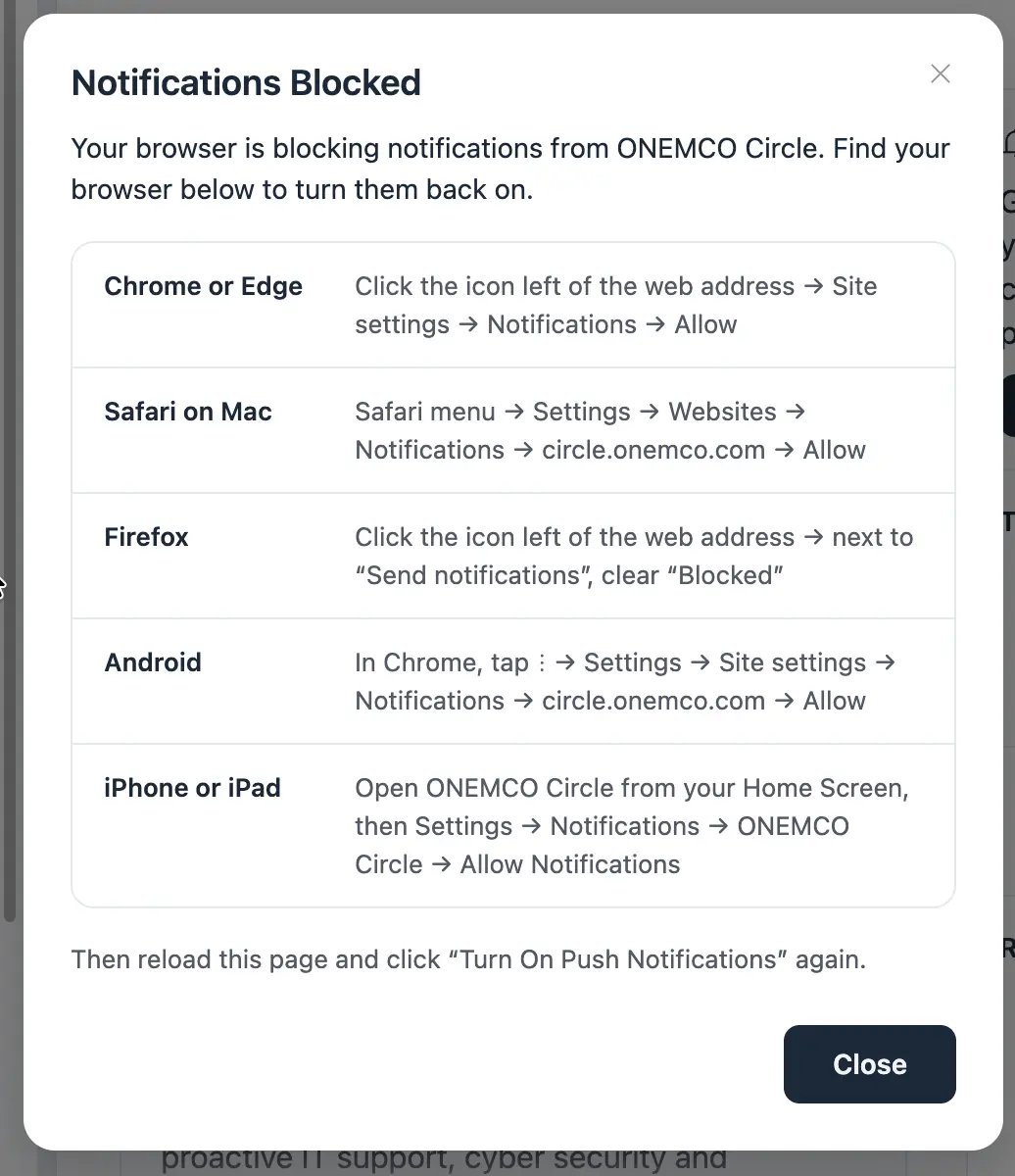

Display Notification Permission Instructions Within the Pop-up
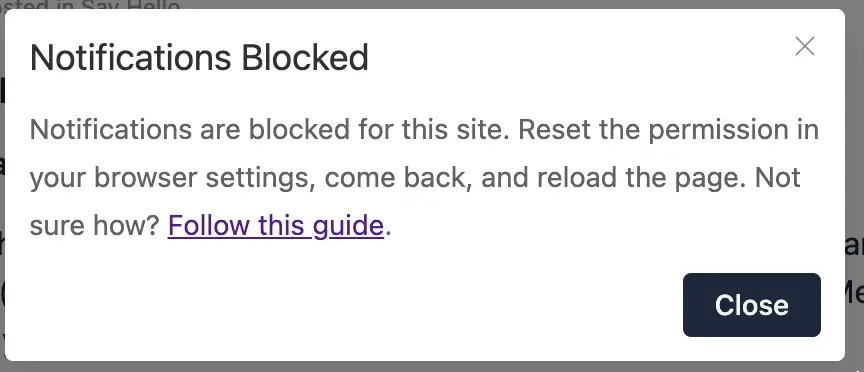
Currently, when browser notifications are blocked, the pop-up displays a “Follow this guide” link that redirects customers to Fluent’s help documentation.
The concern is that customers are being redirected to a third-party website they may not recognise. This could create confusion, disrupt their experience, and dilute our brand identity by taking them outside our branded environment.
Instead, could the instructions for enabling browser notifications be displayed directly within the pop-up?
This would allow customers to resolve the issue without leaving the current page, providing a more seamless and consistent branded experience.
Ideally, the pop-up could display simple, browser-specific instructions so customers can quickly enable notifications without being redirected to an external website.

something like
Look at the very left end of your browser's address bar (where the URL yourcommunityurlrl.com is displayed) and click the Sliders/Settings icon (or the lock/tune icon).
- Click on Site settings.
- Scroll down to find Notifications in the list of permissions.
- Change the dropdown setting from Block to Allow.
- Close the settings tab, come back to your community page and reload the page.
Once you reload, click Turn On Push Notifications again, and your browser will successfully prompt you to allow them!

Thanks for the detailed post, we will review this matter.
Tawsif Ahmed Riyad you can build something like this.. I am running a php snippet that help me create that pop-up into this..